About Visual Grid
Introduction
VisualGrid is a responsive web app for visual project planning, goal-setting, and creative inspiration. Search the Unsplash API, save your favorite images to a personalized board, and add notes, ideas, or goal statements to each one..
Designed for anyone planning projects or tracking personal goals, it provides a simple, organized space to collect and annotate images.
Features of VisualGrid
Powerful Search Options
- Each search phrase returns 12 images
- Click "Load more" for 12 more
- Revisit previous searches with one click
Search results
- See each images on a card with Save/Remove options
- Current search phrase added to results title and load more button
- See all past search phrases
Save Images to Your Board
- Click an image to view it in the modal at full size
- Save or Remove in modal view
- Saved images appear in your board panel
Add Meaningful Notes
- Add notes to any saved image
- Add goal statements to a photo in the modal view
- Edit or remove notes anytime
Thumbnail Controls
- Quickly jump to any saved image
- Reorder images up or down
- Delete unwanted images
Customize Your Vision Board
- Change the title for your board
- Adjust slideshow timing
- Show or hide affirmations
Home Page Modal
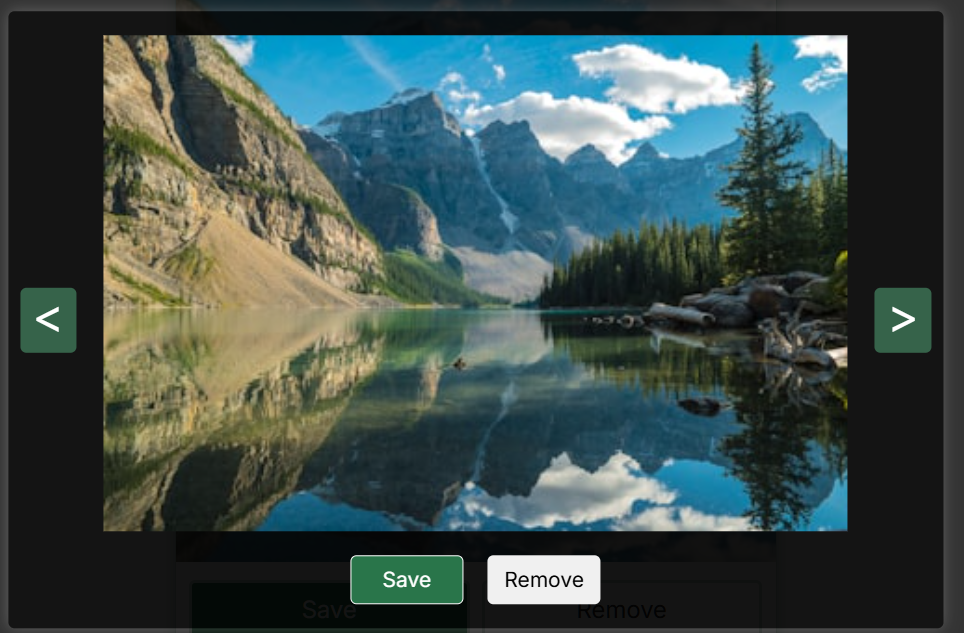
Navigate through the images
- Click on any image on the search page to view full image layout.
- Choose to Save or Remove image from this view.
- Navigate forward or backwards through all images.
- Click the close button ('x'), click outside inner modal, or hit Escape to exit the modal view.
Board Page View
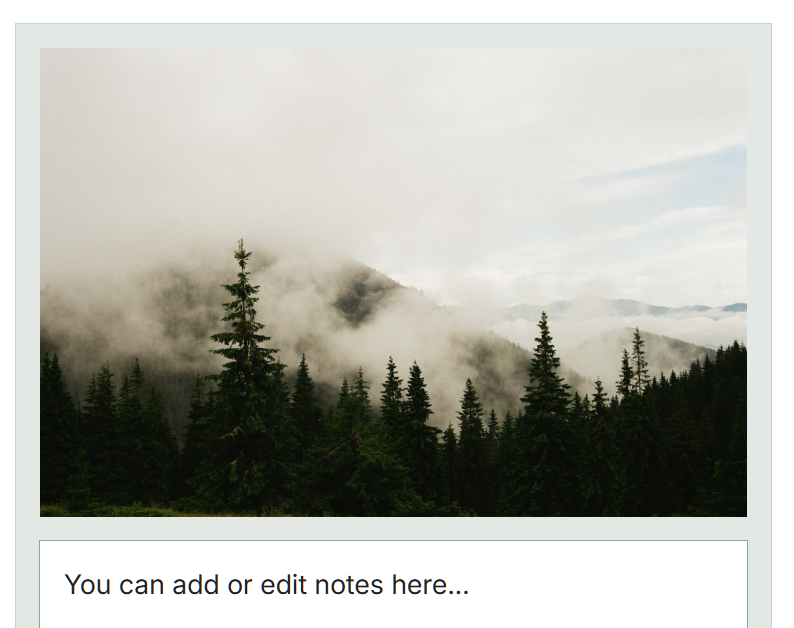
View of photo and editable text field
- On your board page, see all saved images in a clean layout with an editable note area.
- Click any saved image to open it in a modal and add an affirmation or goal statement (115 characters max).
- Navigate between images in the modal to update multiple affirmations.
- Use the thumbnails view to delete saved images or move them up or down.
Board Page Modal
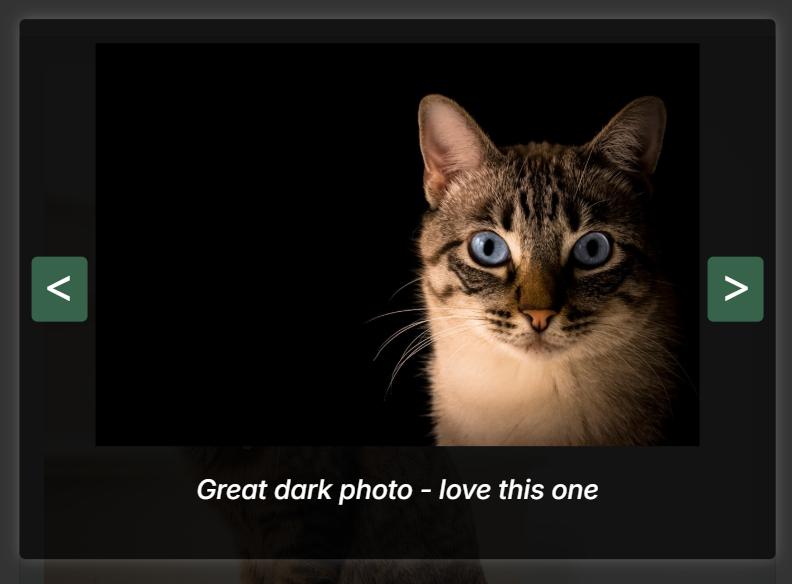
Editable affirmation on board modal
- Add a goal statement or affirmation for each image which is displayed during the slider.
- Use the full-screen slider to view saved images in sequence.
- Use the navigation button to add your statements for each saved image.
- Each slide shows the image's affirmation or goal statement.
Thumbnails View
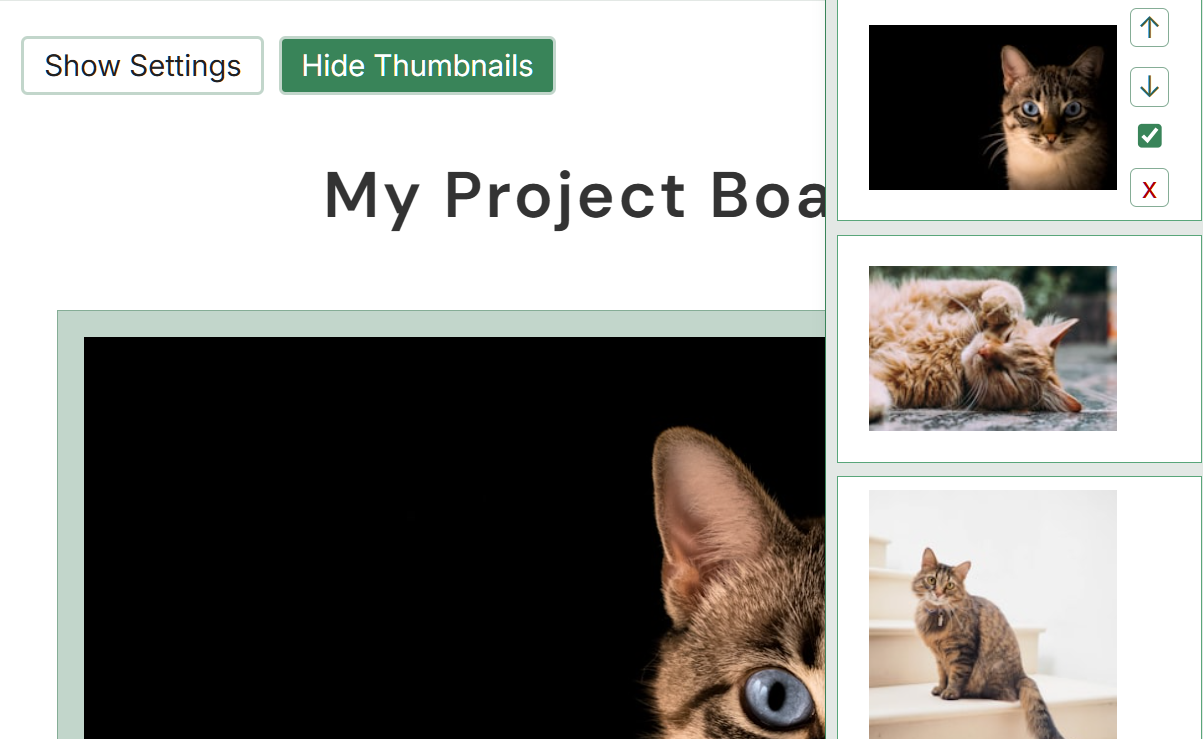
View of thumbnails
- Quickly jump to any saved image by selecting its thumbnail.
- Reorder images by moving thumbnails up or down.
- Delete an image and its notes with one click.
- Toggle whether an image appears in the slider using a checkbox.
Settings Form
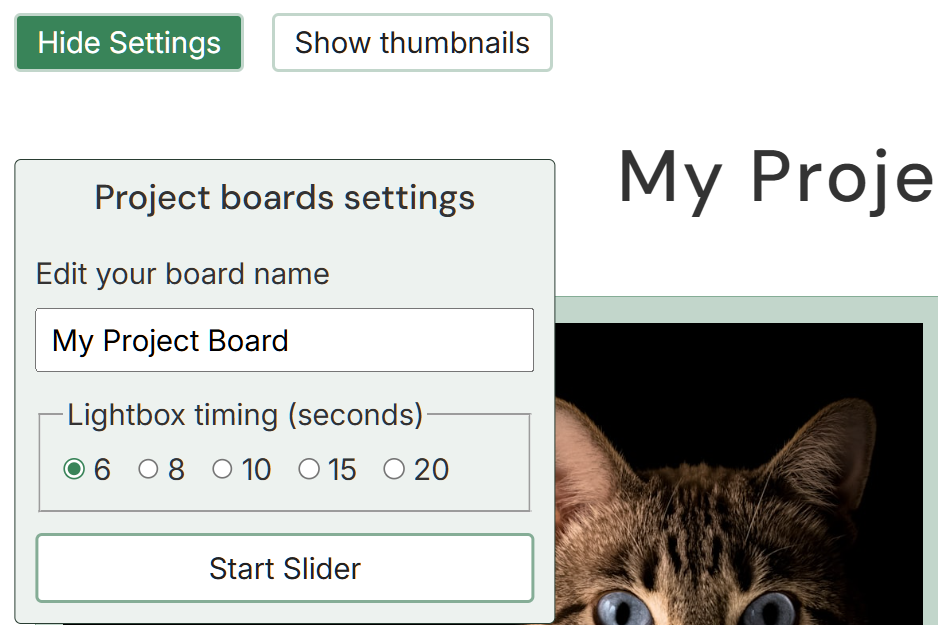
Customize your page and slider
- Rename your project board with a custom title, change it at any time.
- Choose the timing interval in seconds for the lightbox slider.
- Start the slideshow using the form play button. Stop the slider by clicking the slider at any time.
Quick Start
- Search for images using keywords that match your project or inspiration.
- Save the images you like which will automatically appear on your board page.
- Add notes and/or affirmations to each saved image.
- Reorder, edit, or delete saved images as needed.
- Use the lightbox slider to review your board in full-screen mode.
Tips & Best Practices
- Use related search terms to build your themed board quickly.
- Add brief notes or affirmations to each image to capture ideas, goals, or steps to achieve your goal or project.
- Regularly organize and remove unused images to keep boards focused.
FAQ / Troubleshooting
-
Q: Why did my saved image disappear from the home page?
A: Saved images are removed from the home page and are added to your board page. -
Q: Can I recover a deleted image?
A: No - deleting an image from the board permanently removes it from your saved collection. -
Q: How do I adjust the slider speed?
A: Use the settings form on the board page to change the timing between slides. Options are 6, 8, 10, 15, or 20 seconds.